
Using Director Console, you can create static and dynamic lists in Fabric-enabled LogPoint instances. A static list in LogPoint is the collection of pre-defined values and a dynamic list in LogPoint is a list that collects specific values from the events during the runtime and stores them for a limited or an unlimited period. Refer to the Lists section in LogPoint for more details.
Note
You can configure lists for Fabric-enabled LogPoint v6.7.2 and later.
Go to Configure >> Entities >> Lists.
Select the LogPoint instances where you want to configure the static list.
Click Next.
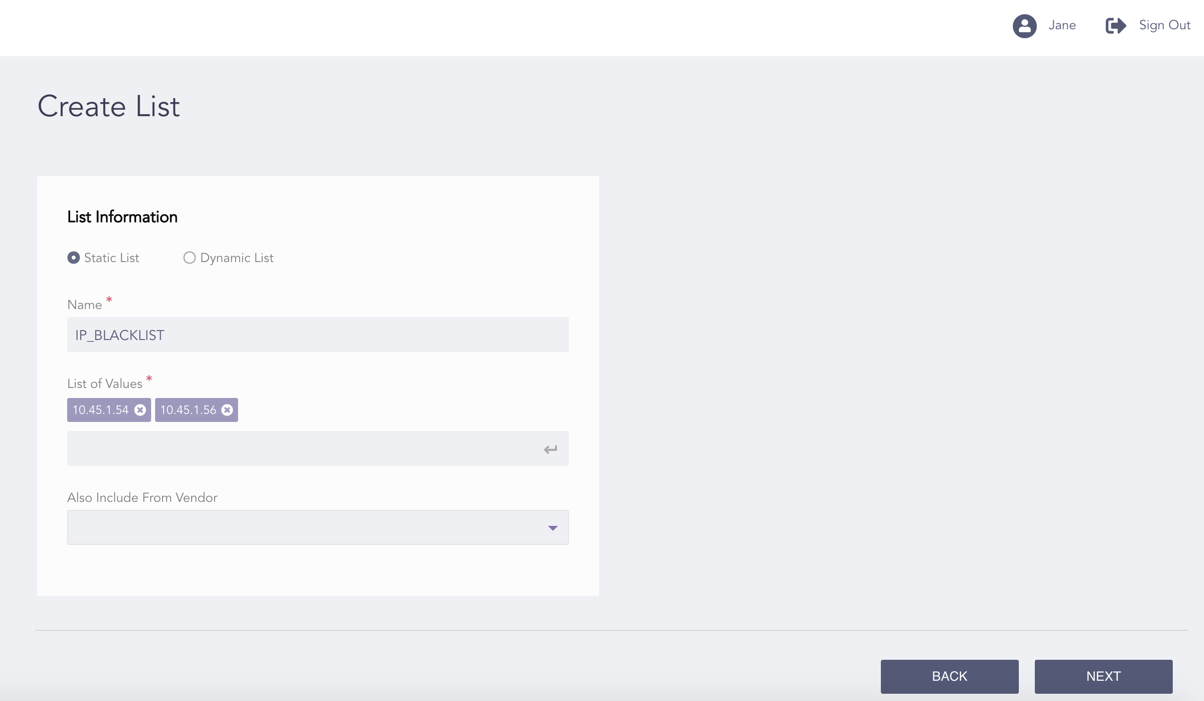
Configuring the Static List
Select Static List.
Enter a Name for the static list.
Enter a List of Values to add in the static list.
Select lists provided by the vendor from the Also Include From Vendor drop-down.
Click Next.
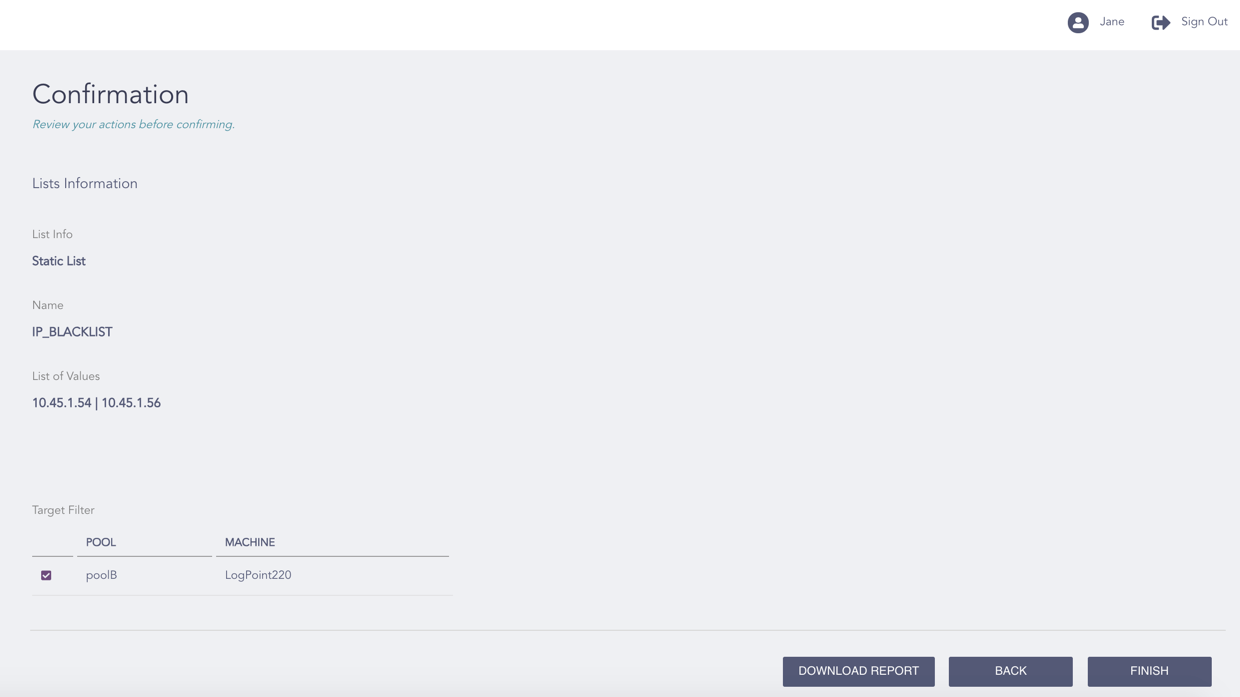
Confirming the Changes
Review your changes. You can go Back to make any changes if necessary.
Note
Click Download Report to save the summary of the task in PDF.
Click Finish.
Click OK.
Go to Configure >> Entities >> Lists.
Select the LogPoint instances where you want to configure the dynamic list.
Click Next.
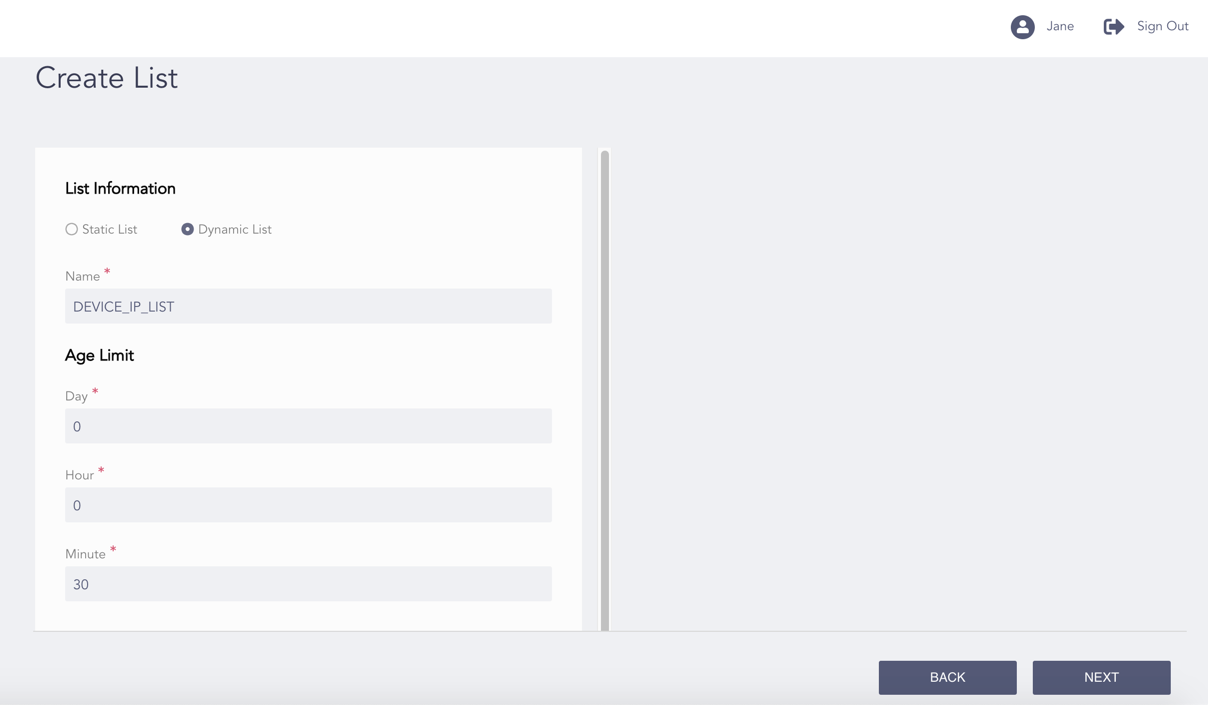
Configuring the Dynamic List
Select Dynamic List.
Note
Refer to the Dynamic Lists section to define the list values of the dynamic list with the process command.
You can also define the dynamic list values with the process command for a Fabric-enabled LogPoint from the LogPoint Search Master where it is configured.
Enter a Name for the dynamic list.
Enter the Age Limit in Day, Hour, and Minute. After the Age Limit is over, the dynamic list values are removed.
Note
The Age Limit must be at least 30. If you do not want the values to expire, set the Age Limit as 0.
Click Next.
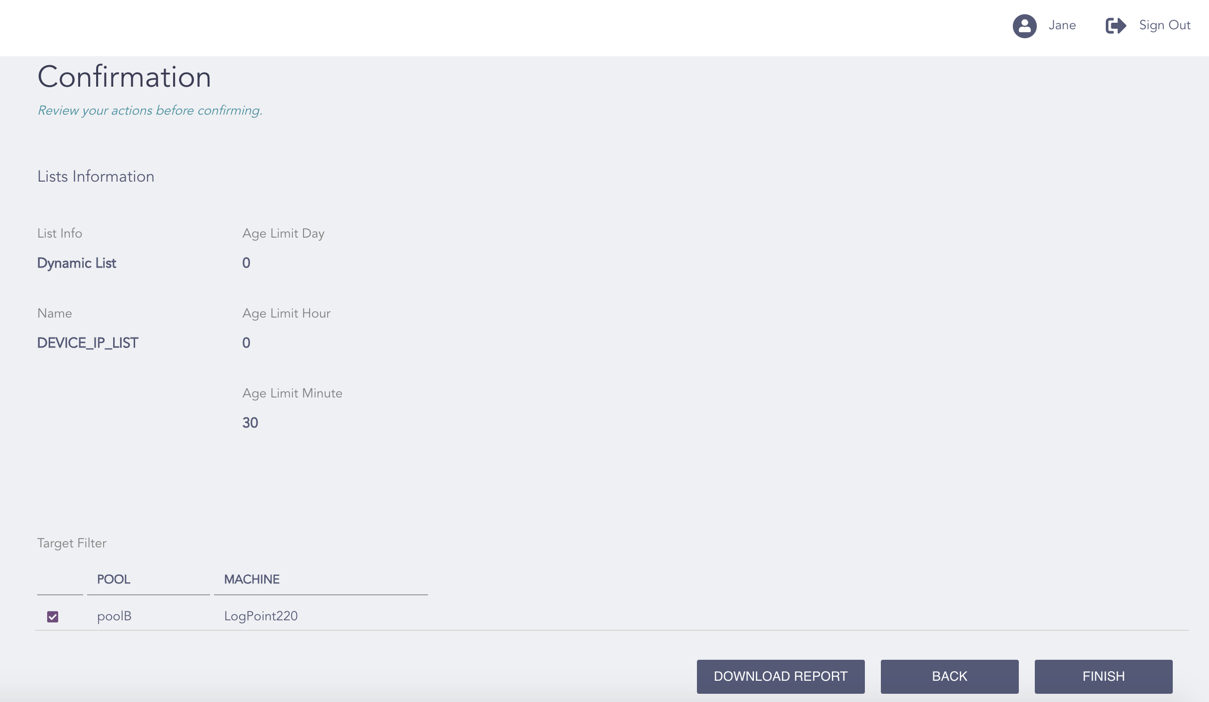
Confirming the Changes
Review your changes. You can go Back to make any changes if necessary.
Note
Click Download Report to save the summary of the task in PDF.
Click Finish.
Note
You must refresh lists from the Refresh List APIs section before editing a dynamic list from the Search page.
Click OK.